How to Create Default Users on MikroTik Hotspot (Free Access Users)
When running a MikroTik hotspot, most users are required to purchase vouchers before accessing the internet.
However, there are situations where some users should not have to pay.
For example:
Staff members
Administrators
Technicians
Hotspot owners
These users can be given direct access using default hotspot users.
What Are Default Users?
Default users are accounts created directly in MikroTik that allow login without purchasing vouchers.
Instead of using a voucher code, these users log in using:
Once logged in, they can access the internet based on the permissions you assign.
Why Default Users Are Important
Default users help you:
Test your internet and see if it is working well
Give reliable access to staff and agents without interrupting daily operations
Keep internal access separate from paying customers
Separate paying customers from internal users
This keeps your hotspot organized and professional.
Steps to create the default users
Step 1: Open Winbox
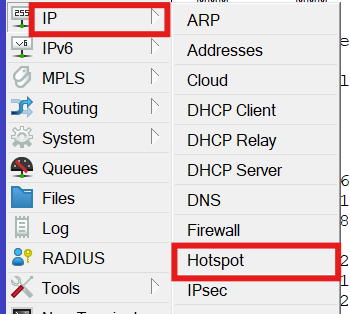
In WinBox, go to:
IP → Hotspot → Users
This is where all hotspot users are managed.
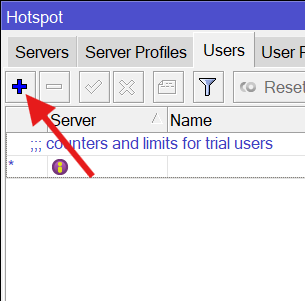
Step 2: Create a New User
Click Add (+)
Fill in:
Note: The name == password
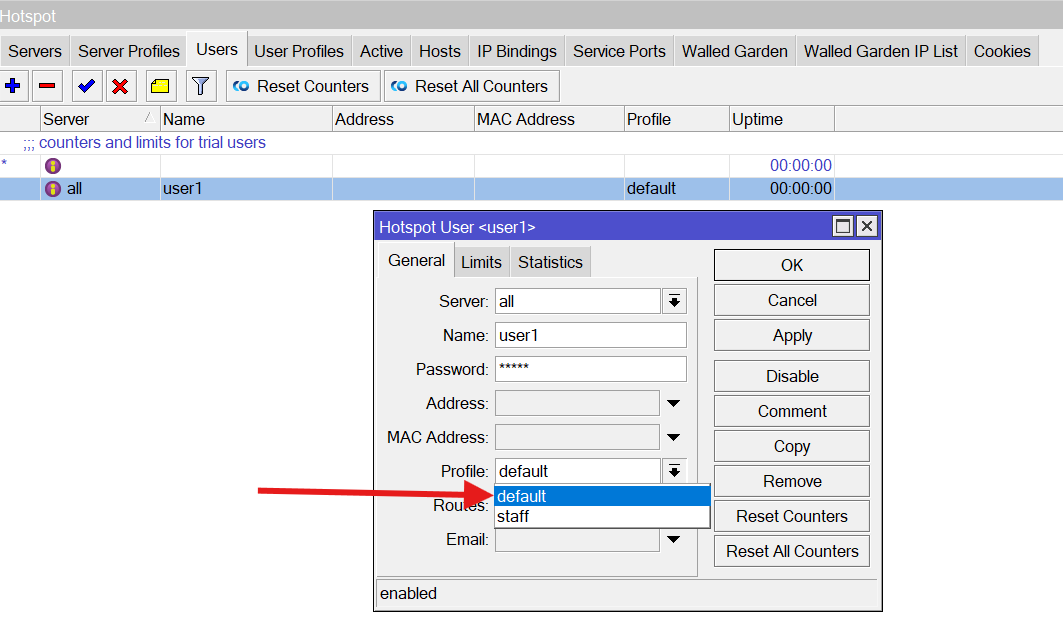
Step 3: Assign a User Profile
Under Profile, choose a profile such as:
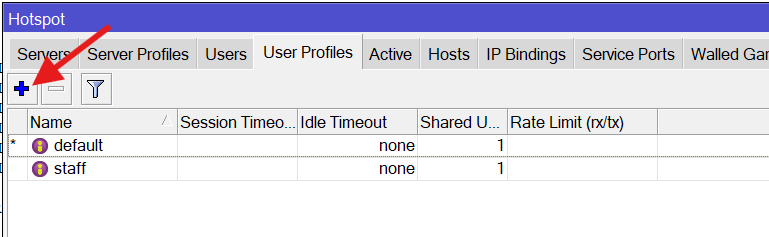
Step 4: (Optional) Create a Staff Profile
For better control, create a separate profile.
Go to:
IP → Hotspot → User Profiles → Add (+)
Set:
This allows you to:
Step 5: Save and Test
Click Apply and OK to save the user.
Next, test the login process:
Connect to your WiFi network from a device
Select your hotspot network from the available WiFi options
A XenFi captive portal will appear
Now:
If everything is set correctly:
